---
title: How to use the Communications module
description: In this article you will learn how to use the Communications module. It comes with a modern interface and improved features. This guide shows you how to use it efficiently and get the most out of its updated tools.
---
[Skip to content](https://help.eventtia.com/knowledge/how-to-use-the-communications-module#main-content)
- [English](https://help.eventtia.com/knowledge/how-to-use-the-communications-module)
- [Español](https://help.eventtia.com/es/knowledge/cómo-usar-el-módulo-de-comunicaciones)
- [Français](https://help.eventtia.com/fr/knowledge/comment-utiliser-le-module-de-communications)
English
Show submenu for translations
[![Logo black transparent background.png\]](https://help.eventtia.com/hs-fs/hubfs/Logo%20black%20transparent%20background.png?height=40&name=Logo%20black%20transparent%20background.png)](https://eventtia.com/)
Open main navigation
Close main navigation
- - [English](https://help.eventtia.com/knowledge/how-to-use-the-communications-module)
- [Español](https://help.eventtia.com/es/knowledge/cómo-usar-el-módulo-de-comunicaciones)
- [Français](https://help.eventtia.com/fr/knowledge/comment-utiliser-le-module-de-communications)
English
Show submenu for translations
- [Create a ticket for our Support Team](https://help.eventtia.com/knowledge/kb-tickets/new)
[Create a ticket for our Support Team](https://help.eventtia.com/knowledge/kb-tickets/new?hsLang=en)
Welcome to Eventtia Knowledge Base
- There are no suggestions because the search field is empty.
1. [Knowledge Base](https://help.eventtia.com/knowledge?hsLang=en)
2. [Configure and use your Eventtia modules & features](https://help.eventtia.com/knowledge/configure-and-use-your-eventtia-modules-features?hsLang=en)
3. [Communications](https://help.eventtia.com/knowledge/configure-and-use-your-eventtia-modules-features?hsLang=en#communications)
# How to use the Communications module
## In this article you will learn how to use the Communications module. It comes with a modern interface and improved features. This guide shows you how to use it efficiently and get the most out of its updated tools.
#### Step 1:
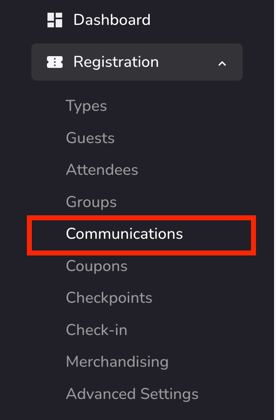
- Go to the **Registration** module and click **Communications**
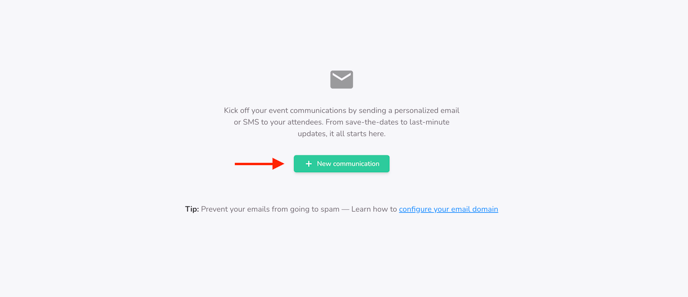
- Then click on **+ New communication** to start a new mass email.
#### Step 2:
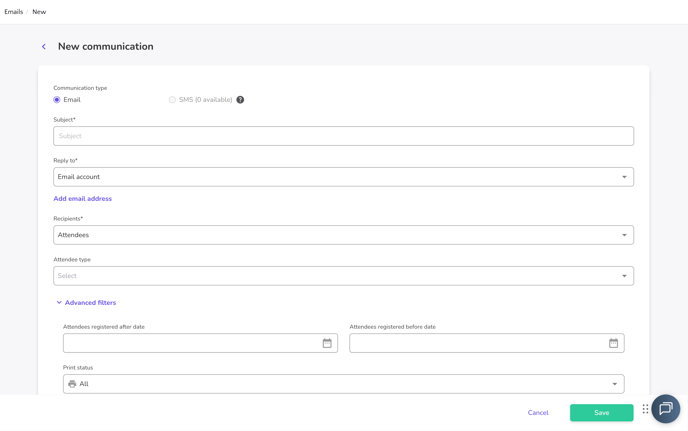
Before creating a new email to send to your attendees, make sure you have configured the general settings. You will find the information and filters needed to configure your emails: **Email**
**Mandatory Information and Filters:**
- **Subject :** Enter the subject line that will appear in the emails received by recipients.
- **Email account :** Select the email address configured in your Eventtia account that will receive responses from recipients.
- **Add email adress**: Use this option to add a different email account from the one initially configured, which will also be able to receive responses from recipients.
- **Recipients and Attendee Type:** Select the attendee types you want to target as recipients.
**Optional Information and Filters:**
- **Attendees registered after/before date** filter: This filter refers to the participant registration dates.
***Note**:* Please use this filter only if your email is intended for attendees who registered within a specific date range.
***Example***: I want to send this email to attendees who registered between January 2 and January 10. Otherwise, leave this filter empty.
- **Networking**: Use this filter to send emails only to participants involved in networking sessions. This option appears only if the Networking module is enabled.
- **Payment Status:** This filter enables you to send emails based on payment status (Paid, Unpaid). It also allows you to send a payment reminder. This option appears only if a payment platform is integrated (e.g., Stripe, PayPal).
[Here’s an article for more information.](https://help.eventtia.com/knowledge/send-payment-reminders?hsLang=en)
**Note**: Some filters will only be available if their corresponding module is enabled and already configured for your event such as Networking, Payment status, Categories... , or Activities (once you have selected the attendee type).
- Then click the **Save** button**.**
#### Step 3:
- Then you will be redirected to the **Design’ tab**, where you can start creating and customizing the content and layout of your mass email.
In the Design tab, you’ll now see two small buttons: **Copy Design and Paste Design**. This lets you clone a mass email from one event to another, avoiding starting from scratch.
**Note:** if the copied email design contains links, make sure to update the URLs so they match the new event’s information.
#### 
**The editor is composed of three sections:**

- **Section 1 - Design:** Allows you to create an email using components and text.
- To design your email, drag and drop components from Section 3 into Section 1.
- **Section 2 - Preview:** Allows you to visualize your email on different screen types (computer, smartphone, tablet).
- **Section 3 - Components:** Allows you to select the components you want to use and drag-and-drop them into Section 1.
**You may find three main elements:**
- **Content:** Offers various drag-and-drop components in Section 1 - Design (see details below).
- - **Column:** Ideal for grouping multiple content elements within the same block.
- - **Button:** Easily add a custom button to redirect participants to a page or file.
- - **Divider / Separator Line:** Perfect for defining sections, such as the footer.
- **Heading / Titles:** Allows you to add titles and subtitles with customized colors and formatting.
- **Text:** Insert and format your textual content.
By clicking on the element or selecting the text within the block, quick menus will appear for text formatting.

*Note: When hovering over a block, an additional options bar will appear.*
- The **‘Merge tags’** option allows you to automatically retrieve participant registration form information from the ‘Attendee’ section:”

It also allows you to retrieve event-related information from the ‘Event’ section:

- - **Image:** Add images to your email to make it more engaging.
- - **Social / Social Media Icons:** Create direct links between your email and your social media profiles.
- **Menu**: Structure your email and automatically redirect recipients to specific sections.
- **HTML:** Perfect if you already have an HTML code that you want to integrate into Eventtia.
- To configure the content, click on an element in the design space. The configuration options will appear on the right side of the screen. From the red box below, you can customize your blocks according to your needs.

**Blocks:** Offers blocks to create rows and paragraphs with multiple columns.
**Body:** Configure the appearance of your components. For example, modify fonts, images, colors, and more.
#### Step 4: Finalizing and Sending Your Mass Email
- Once your email is finalized, click ‘**Save**.’
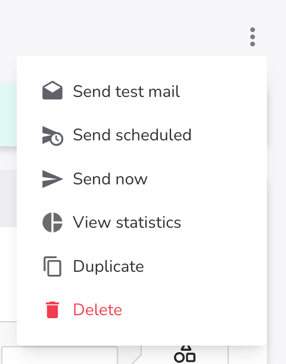
- Your email is now ready. You can send a test email first, send it immediately, schedule it, Duplicate it or delete it by clicking on the three dots in the top-right corner.
### Understanding the Communications dashboard
The redesigned dashboard provides a clear overview of all communications and their performance. It displays every email created, along with **a detailed view of their statistics.**
****
- To access the detailed performance of a specific email, simply click the three dots on the right side of the email, then select **“View statistics.”**
**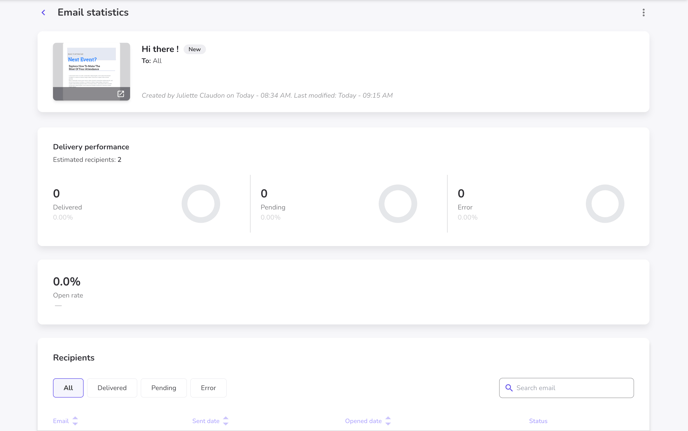**
This section provides a comprehensive breakdown of the email’s delivery and engagement metrics.
The **Delivery performance** panel shows key indicators such as:
- **Estimated recipients**
- **Delivered**
- **Pending**
- **Error**
- **Open rate**
All values are displayed with both counts and percentages for full clarity.
Below, a **Recipients** table lets you filter recipients by status: *All, Delivered, Pending,* or *Error* , and includes a search bar to help you quickly locate any email address.
The table also provides details such as:
- **Email**
- **Sent date**
- **Opened date**
- **Status**
If the communication has not been sent yet, the statistics page will display a notice indicating that delivery data will only be available after the email has been sent.
### You now know how to navigate and make the most out of the redesigned communication interface.
- [Configure your account and create your first event](https://help.eventtia.com/knowledge/configure-your-account-and-create-your-first-event?hsLang=en#main-content)
- [Configure your account and set up your users](https://help.eventtia.com/knowledge/configure-your-account-and-create-your-first-event?hsLang=en#configure-your-account-and-set-up-your-users)
- [Create an Event in 30 Minutes](https://help.eventtia.com/knowledge/configure-your-account-and-create-your-first-event?hsLang=en#create-an-event-in-30-minutes)
- [Connect your Payment Gateway](https://help.eventtia.com/knowledge/configure-your-account-and-create-your-first-event?hsLang=en#connect-your-payment-gateway)
- [Configure and use your Eventtia modules & features](https://help.eventtia.com/knowledge/configure-and-use-your-eventtia-modules-features?hsLang=en#main-content)
- [Registration & Ticketing](https://help.eventtia.com/knowledge/configure-and-use-your-eventtia-modules-features?hsLang=en#registration-ticketing)
- [Badges](https://help.eventtia.com/knowledge/configure-and-use-your-eventtia-modules-features?hsLang=en#badges)
- [Networking, Matchmaking, 1:1 Meetings](https://help.eventtia.com/knowledge/configure-and-use-your-eventtia-modules-features?hsLang=en#networking-matchmaking-11-meetings)
- [Event program](https://help.eventtia.com/knowledge/configure-and-use-your-eventtia-modules-features?hsLang=en#event-program)
- [Virtual Stage / Web App for Virtual Events](https://help.eventtia.com/knowledge/configure-and-use-your-eventtia-modules-features?hsLang=en#virtual-stage-web-app-for-virtual-events)
- [Communications](https://help.eventtia.com/knowledge/configure-and-use-your-eventtia-modules-features?hsLang=en#communications)
- [Online Payments](https://help.eventtia.com/knowledge/configure-and-use-your-eventtia-modules-features?hsLang=en#online-payments)
- [Event Web Pages, Website Composer](https://help.eventtia.com/knowledge/configure-and-use-your-eventtia-modules-features?hsLang=en#event-web-pages-website-composer)
- [Sponsors](https://help.eventtia.com/knowledge/configure-and-use-your-eventtia-modules-features?hsLang=en#sponsors)
- [Surveys](https://help.eventtia.com/knowledge/configure-and-use-your-eventtia-modules-features?hsLang=en#surveys)
- [On-site Check-In App](https://help.eventtia.com/knowledge/configure-and-use-your-eventtia-modules-features?hsLang=en#on-site-check-in-app)
- [Data, Analytics & Reports](https://help.eventtia.com/knowledge/configure-and-use-your-eventtia-modules-features?hsLang=en#data-analytics-reports)
- [API](https://help.eventtia.com/knowledge/configure-and-use-your-eventtia-modules-features?hsLang=en#api)
- [Streaming (Video & Audio)](https://help.eventtia.com/knowledge/configure-and-use-your-eventtia-modules-features?hsLang=en#streaming-video-audio)
- [Guides for your attendees](https://help.eventtia.com/knowledge/guides-for-your-attendees?hsLang=en#main-content)
- [Q&A module (Questions and Answers)](https://help.eventtia.com/knowledge/guides-for-your-attendees?hsLang=en#qa-module-questions-and-answers)
- [Event app for attendees](https://help.eventtia.com/knowledge/guides-for-your-attendees?hsLang=en#event-app-for-attendees)
- [Virtual stage - Event app for virtual events](https://help.eventtia.com/knowledge/guides-for-your-attendees?hsLang=en#virtual-stage-event-app-for-virtual-events)
- [Networking](https://help.eventtia.com/knowledge/guides-for-your-attendees?hsLang=en#networking)
- [Frequently Asked Questions](https://help.eventtia.com/knowledge/frequently-asked-questions?hsLang=en)
- [Common errors and issues: Identification and solutions](https://help.eventtia.com/knowledge/common-errors-and-issues-identification-and-solutions?hsLang=en)
- [Modules](https://help.eventtia.com/knowledge/modules?hsLang=en#main-content)
- [Communications](https://help.eventtia.com/knowledge/modules?hsLang=en#communications)
- [Virtual Stage](https://help.eventtia.com/knowledge/virtual-stage?hsLang=en)
- [Support](https://help.eventtia.com/knowledge/support?hsLang=en)
[](https://www.eventtia.com/)
Event Managment Software
Copyright © 2026, Eventtia
```json
{
"@context" : "https://schema.org",
"@type" : "VideoObject",
"caption" : {
"@type" : "MediaObject",
"contentUrl" : "https://help.eventtia.com/media-transcripts/199722079868/en.vtt",
"inLanguage" : "en",
"name" : "en Captions"
},
"contentUrl" : "https://4235311.fs1.hubspotusercontent-na1.net/hubfs/4235311/How%20to%20Build%20and%20Send%20Emails%20with%20Eventtia%20communication%20module%20%F0%9F%93%A7.mp4",
"dateModified" : "2025-11-14T10:36:59.888Z",
"duration" : "PT4M31.838S",
"height" : 1080,
"name" : "How to Build and Send Emails with Eventtia communication module 📧",
"thumbnailUrl" : "https://4235311.fs1.hubspotusercontent-na1.net/hubfs/4235311/How%20to%20Build%20and%20Send%20Emails%20with%20Eventtia%20communication%20module%20%F0%9F%93%A7.mp4/medium.jpg",
"uploadDate" : "2025-11-14T10:32:34.370Z",
"width" : 1920
}
```