![Logo black transparent background.png]](https://help.eventtia.com/hs-fs/hubfs/Logo%20black%20transparent%20background.png?height=40&name=Logo%20black%20transparent%20background.png)
With 2FA enabled, you will need:
-
Your email and password, and
-
A temporary verification code generated by an authenticator app on your mobile device.
Step 1:
- Access your Eventtia account using your email and password.
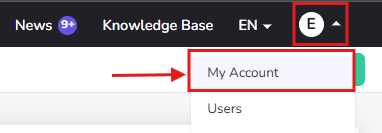
- Once logged in, open your user menu and click on My account.
Step 2:
- Scroll down to the bottom of the page until you find the Two-factor authentication section.
- Click on Enable 2FA.

Step 3:
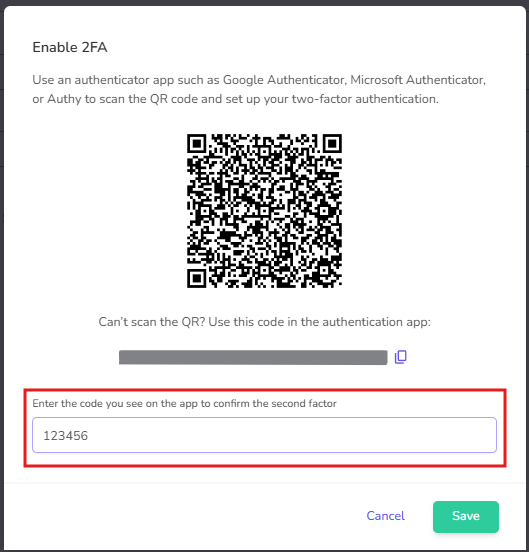
Open an authenticator app on your mobile device. You can use Google Authenticator, Microsoft Authenticator, or Authy.
-
Add a new account in your authenticator app.
-
Scan the QR code shown on the screen or manually enter the setup key.
-
Once the account is added, your app will generate a temporary verification code.
-
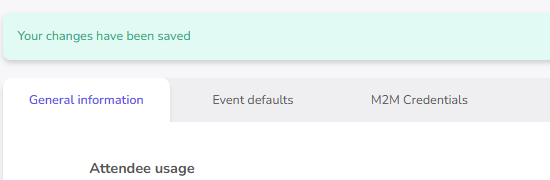
Enter that code in Eventtia to confirm and activate 2FA.
Logging in with 2FA enabled
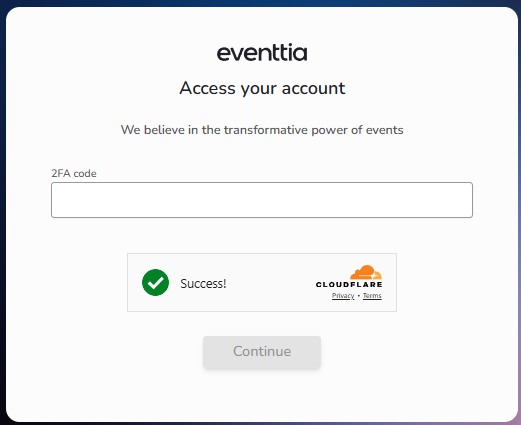
After enabling 2FA, each time you log in to Eventtia you will need to:
-
Enter your email and password.
-
Enter the verification code generated by your authenticator app.
How to Disable Two-Factor Authentication (2FA)
If you want to disable 2FA:
-
Go to My account.
-
Scroll down to the Two-factor authentication section.
-
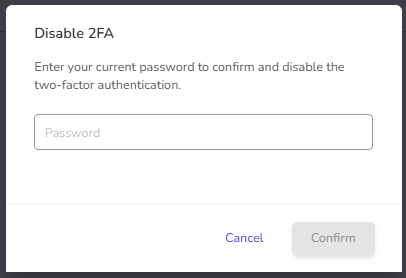
Click on Disable 2FA.

-
Enter your Eventtia account password to confirm.