![Logo black transparent background.png]](https://help.eventtia.com/hs-fs/hubfs/Logo%20black%20transparent%20background.png?height=40&name=Logo%20black%20transparent%20background.png)
Whether you’re targeting attendees or guests, buttons can be used to guide them toward registration, document downloads, cancellations, or other useful interactions, all while keeping your email visually clean and user-friendly.
Part 1: Button Design & Customization
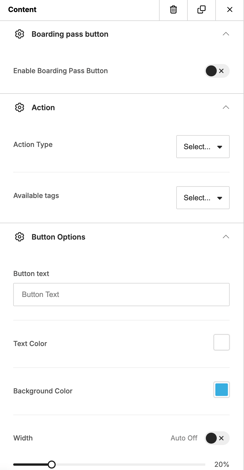
Before setting up the action behind a button, you can fully customize its appearance and text. In the email composer, each button block allows you to:
- Edit the button label (field: Button Text)
- Customize the text color
- Choose a background color
- Adjust the width of the button
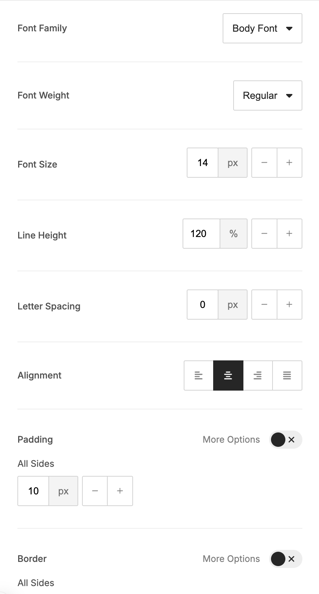
- Change the font style and font size
These options help ensure your buttons match your event branding and remain easy to identify across different devices.
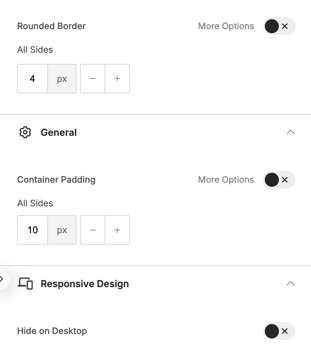
Example of the Custom Button settings panel:
 |
|
|

Part 2: Using Buttons When Sending to Attendees
When your recipient type is Attendees, you have access to two button types: Custom Button and the “Classic” Button.
Custom Button
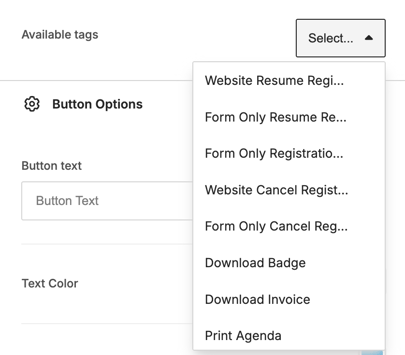
The Custom Button allows you to insert dynamic actions using available system tags. These tags automatically adapt to the recipient’s registration status or profile.

Available tags include:
-
Website Resume Registration:
Opens the full website registration page (including WebComposer layout, images, and form) so the attendee can review and edit their registration details. -
Website Cancel Registration:
Opens the same website page used for the registration form (including the WebComposer layout), but instead of showing the form, it displays a cancellation confirmation button. -
Form Only Resume Registration:
Opens only the registration form, without any website layout, so the attendee can correct or update their submitted information. -
Form Only Registration Summary:
Shows a simple summary of the attendee’s submitted registration information. -
Form Only Cancel Registration:
Opens a minimal page containing only the cancellation button, allowing the attendee to cancel their registration without website layout or additional content. - Download Badge:
Allows the attendee to download their event badge directly. This badge can be printed or saved and will be used for on-site check-in.
- Download Invoice:
Allows the attendee to download their invoice. This is useful if they need to download the invoice again, as it is initially sent with the welcome email after registration.
-
Print Agenda:
Allows the attendee to download their personalized agenda showing the attendee’s registered networking sessions. This feature is available only if networking is included in your license and should not be confused with the event activities schedule. -
Quiz / Survey (if created for the event):
Redirects the attendee to the quiz or survey. This tag is only available if a quiz or survey has been created for the event.
Classic Button
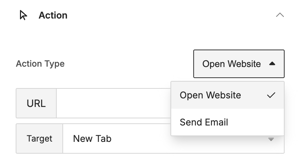
With the Classic Button, you can manually define the action by selecting one of the following options:
- Open Website:
Redirects the user to a specified external website or webpage.
- Send Email To :
Opens the user’s default email application with a new message addressed to the specified email address.
Part 3 : Using Buttons When Sending to Guests
When your recipient type is Guests, the options differ slightly.
Custom Button
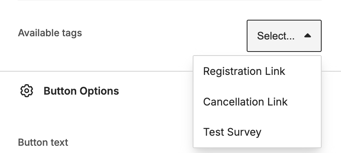
For guests, the Custom Button offers simplified actions:
- Registration Link: to redirect to the registration form
- Cancellation Link: to cancel the guest’s registration
- Quiz / Survey (if created for the event)
Classic Button
Same options as for attendees.