---
title: How to Assign Event Access and Permissions to Users
description: "Once you have created a new user, you will need to assign him or her access to events, as well as several user permissions. Here's how: You can then grant the necessary permissions for this user and ""
---
[Skip to content](https://help.eventtia.com/knowledge/how-to-manage-user-permissions#main-content)
- [English](https://help.eventtia.com/knowledge/how-to-manage-user-permissions)
- [Español](https://help.eventtia.com/es/knowledge/cómo-manejar-los-permisos-de-un-usuario)
- [Français](https://help.eventtia.com/fr/knowledge/comment-gérer-les-droits-des-utilisateurs)
English
Show submenu for translations
[![Logo black transparent background.png\]](https://help.eventtia.com/hs-fs/hubfs/Logo%20black%20transparent%20background.png?height=40&name=Logo%20black%20transparent%20background.png)](https://eventtia.com/)
Open main navigation
Close main navigation
- - [English](https://help.eventtia.com/knowledge/how-to-manage-user-permissions)
- [Español](https://help.eventtia.com/es/knowledge/cómo-manejar-los-permisos-de-un-usuario)
- [Français](https://help.eventtia.com/fr/knowledge/comment-gérer-les-droits-des-utilisateurs)
English
Show submenu for translations
- [Create a ticket for our Support Team](https://help.eventtia.com/knowledge/kb-tickets/new)
[Create a ticket for our Support Team](https://help.eventtia.com/knowledge/kb-tickets/new?hsLang=en)
Welcome to Eventtia Knowledge Base
- There are no suggestions because the search field is empty.
1. [Knowledge Base](https://help.eventtia.com/knowledge?hsLang=en)
2. [Configure your account and create your first event](https://help.eventtia.com/knowledge/configure-your-account-and-create-your-first-event?hsLang=en)
3. [Configure your account and set up your users](https://help.eventtia.com/knowledge/configure-your-account-and-create-your-first-event?hsLang=en#configure-your-account-and-set-up-your-users)
# How to Assign Event Access and Permissions to Users
## Once you have created a new user, you will need to assign him or her access to events, as well as several user permissions.
Here's how to do it:
#### Step 1.
- Under "Users", select the user you want to manage.
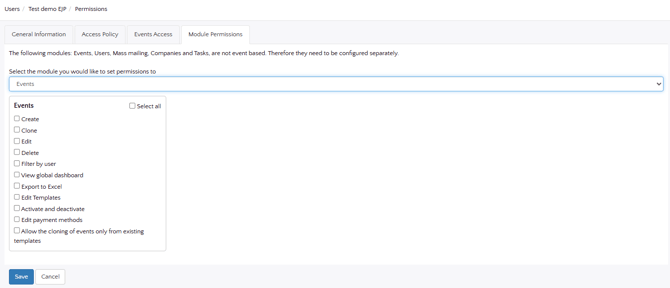
- Click on the "**Module Permissions**" tab. If the user has the right to create events, tick the "Create" box.
- Assign the other permissions according to your needs.
Warning: A user who has the right to create events will have general rights to the event he or she creates (access to all information and all functions).
#### 
#### Step 2.
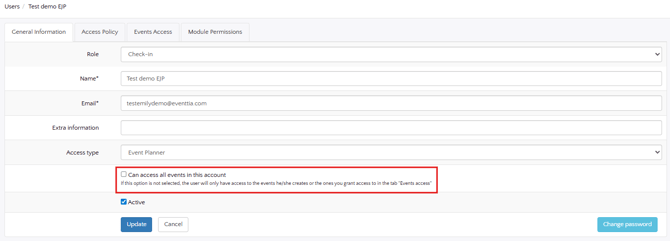
- If the user should not have access to all events within the account, make sure to leave the “**Can access all events in this account**” option unchecked.
- Then click on the "**Events Acces**s" tab to assign permissions to the user on specific events.
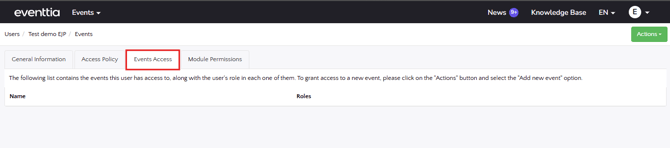
- Click the green "**Actions**" button and select "**Add Event**", then choose an event from the list of existing events.

- You can then grant the user different roles to each even
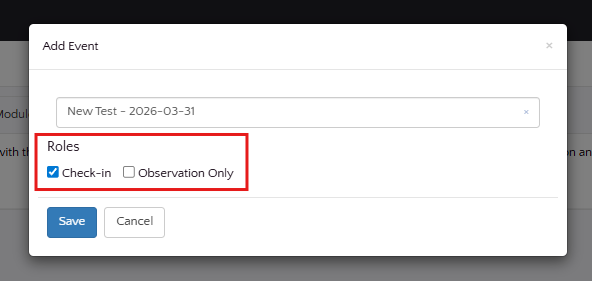
- Don't forget to click "**Save**".
#### Step 3.
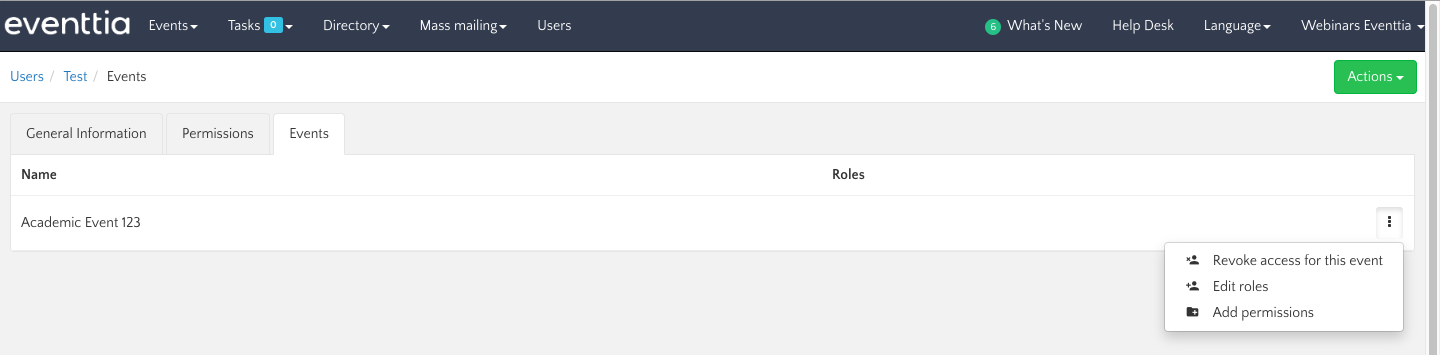
- You can return to a user's card at any time to modify his or her permissions. You can even revoke access previously given to the user on an event. To do so, just click on the three dots on the upper right-hand side and select "Revoke access for this event".
### 
### There you go! The management of user rights on Eventtia is no longer a mystery.
- [Configure your account and create your first event](https://help.eventtia.com/knowledge/configure-your-account-and-create-your-first-event?hsLang=en#main-content)
- [Configure your account and set up your users](https://help.eventtia.com/knowledge/configure-your-account-and-create-your-first-event?hsLang=en#configure-your-account-and-set-up-your-users)
- [Create an Event in 30 Minutes](https://help.eventtia.com/knowledge/configure-your-account-and-create-your-first-event?hsLang=en#create-an-event-in-30-minutes)
- [Connect your Payment Gateway](https://help.eventtia.com/knowledge/configure-your-account-and-create-your-first-event?hsLang=en#connect-your-payment-gateway)
- [Configure and use your Eventtia modules & features](https://help.eventtia.com/knowledge/configure-and-use-your-eventtia-modules-features?hsLang=en#main-content)
- [Registration & Ticketing](https://help.eventtia.com/knowledge/configure-and-use-your-eventtia-modules-features?hsLang=en#registration-ticketing)
- [Badges](https://help.eventtia.com/knowledge/configure-and-use-your-eventtia-modules-features?hsLang=en#badges)
- [Networking, Matchmaking, 1:1 Meetings](https://help.eventtia.com/knowledge/configure-and-use-your-eventtia-modules-features?hsLang=en#networking-matchmaking-11-meetings)
- [Event program](https://help.eventtia.com/knowledge/configure-and-use-your-eventtia-modules-features?hsLang=en#event-program)
- [Virtual Stage / Web App for Virtual Events](https://help.eventtia.com/knowledge/configure-and-use-your-eventtia-modules-features?hsLang=en#virtual-stage-web-app-for-virtual-events)
- [Communications](https://help.eventtia.com/knowledge/configure-and-use-your-eventtia-modules-features?hsLang=en#communications)
- [Online Payments](https://help.eventtia.com/knowledge/configure-and-use-your-eventtia-modules-features?hsLang=en#online-payments)
- [Event Web Pages, Website Composer](https://help.eventtia.com/knowledge/configure-and-use-your-eventtia-modules-features?hsLang=en#event-web-pages-website-composer)
- [Sponsors](https://help.eventtia.com/knowledge/configure-and-use-your-eventtia-modules-features?hsLang=en#sponsors)
- [Surveys](https://help.eventtia.com/knowledge/configure-and-use-your-eventtia-modules-features?hsLang=en#surveys)
- [On-site Check-In App](https://help.eventtia.com/knowledge/configure-and-use-your-eventtia-modules-features?hsLang=en#on-site-check-in-app)
- [Data, Analytics & Reports](https://help.eventtia.com/knowledge/configure-and-use-your-eventtia-modules-features?hsLang=en#data-analytics-reports)
- [API](https://help.eventtia.com/knowledge/configure-and-use-your-eventtia-modules-features?hsLang=en#api)
- [Streaming (Video & Audio)](https://help.eventtia.com/knowledge/configure-and-use-your-eventtia-modules-features?hsLang=en#streaming-video-audio)
- [Guides for your attendees](https://help.eventtia.com/knowledge/guides-for-your-attendees?hsLang=en#main-content)
- [Q&A module (Questions and Answers)](https://help.eventtia.com/knowledge/guides-for-your-attendees?hsLang=en#qa-module-questions-and-answers)
- [Event app for attendees](https://help.eventtia.com/knowledge/guides-for-your-attendees?hsLang=en#event-app-for-attendees)
- [Virtual stage - Event app for virtual events](https://help.eventtia.com/knowledge/guides-for-your-attendees?hsLang=en#virtual-stage-event-app-for-virtual-events)
- [Networking](https://help.eventtia.com/knowledge/guides-for-your-attendees?hsLang=en#networking)
- [Frequently Asked Questions](https://help.eventtia.com/knowledge/frequently-asked-questions?hsLang=en)
- [Common errors and issues: Identification and solutions](https://help.eventtia.com/knowledge/common-errors-and-issues-identification-and-solutions?hsLang=en)
- [Modules](https://help.eventtia.com/knowledge/modules?hsLang=en#main-content)
- [Communications](https://help.eventtia.com/knowledge/modules?hsLang=en#communications)
- [Virtual Stage](https://help.eventtia.com/knowledge/virtual-stage?hsLang=en)
- [Support](https://help.eventtia.com/knowledge/support?hsLang=en)
[](https://www.eventtia.com/)
Event Managment Software
Copyright © 2026, Eventtia