![Logo black transparent background.png]](https://help.eventtia.com/hs-fs/hubfs/Logo%20black%20transparent%20background.png?height=40&name=Logo%20black%20transparent%20background.png)
Here's how you can do it:
Step 1.
-
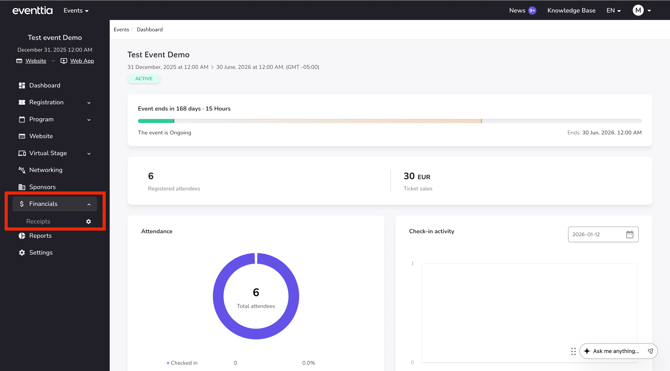
Go to the "Finance" module, then click on the "Settings" icon in the "Receipts" section.
Step 2.
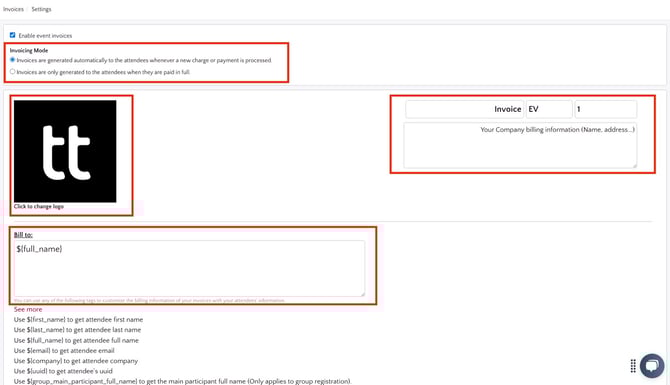
- To easily generate and send personalized receipts, click the "Enable event receipts" option.
- Customize the receipt by adding visual elements (the logo of your event), payment data (the number of the receipt, the address), and the legal information.
- Define what legal information you want to appear on the receipt by using tags.
- You can also choose if you want the receipt to be sent once after full payment or whenever a new charge or payment is processed.
Step 3.
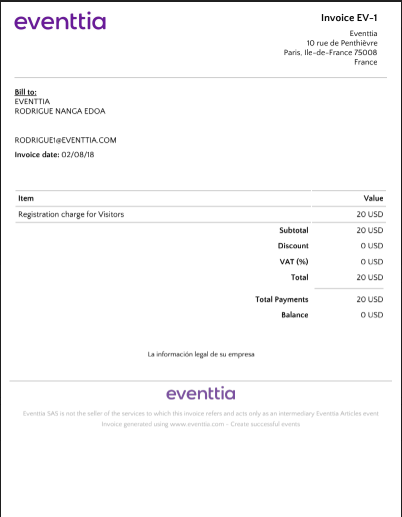
- When the attendee registers and pays the participation fee, they will receive the receipt (PDF) attached to the Welcome Email.
- Attendees have the option to pay via PayPal, PayU, or Stripe, which are all integrated into the system. If the participant hasn't yet paid, the receipt will include a link that allows them to easily complete the payment.
- When the payment is completed in its entirety, the attendee will receive an updated receipt.
Step 4.
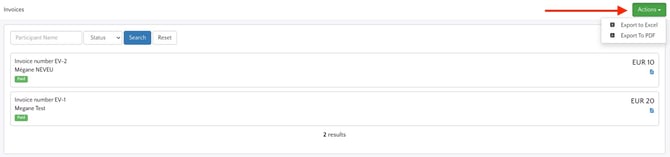
- Once the participants start registering and paying the participation fees, this new module will allow you to find the list of your receipts. Also, you'll be able to sort the event participants by "Paid" and "Pending" categories.
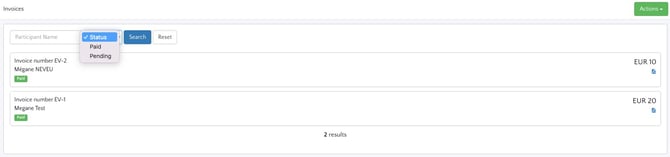
- You can also download the receipt report by clicking on the green "action" button, which allows you to export either in Excel or PDF format.
Step 5.
In addition to the receipts feature, you can also access a payment report. This report will state of all the payments you have collected, how they were collected, for what amount and when. The report will also state the total amount collected for the event.
Here's how you can access the report:
- Go to the "Report" module and click on "Attendee payments" in the card "Registration".
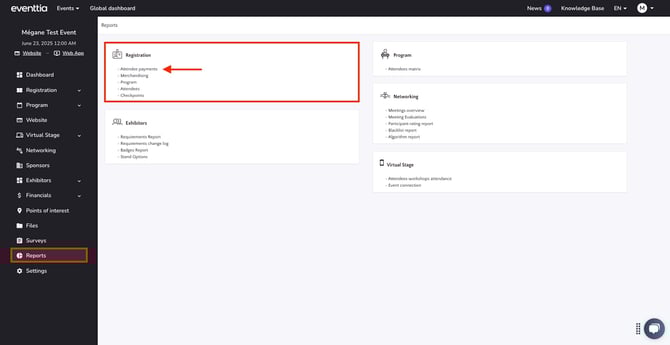
- Here you will find a list of the receipts, which you can export to Excel using the green button.

- Read this article for more information on the "Reports" module.