![Logo black transparent background.png]](https://help.eventtia.com/hs-fs/hubfs/Logo%20black%20transparent%20background.png?height=40&name=Logo%20black%20transparent%20background.png)
What is the Eventtia MCP?
The Eventtia MCP is a connector that lets AI assistants such as Claude and ChatGPT read and manage your Eventtia events using plain language. Instead of navigating the admin, you can ask things like "How many attendees are confirmed for my event?" or "Create a speaker for this event" and the assistant does it for you.
The MCP is designed to speed up everyday tasks. It works alongside the Eventtia admin, not as a replacement for it: some settings are still managed directly in the admin.
How to connect
Connecting takes about two minutes. You sign in once with your Eventtia credentials, and the assistant can then work with the events in your account.
Before you start
- An Eventtia admin account with access to the events you want to manage.
- An account in the AI assistant you want to use (Claude or ChatGPT).
- If you use a company or team plan of the assistant, your workspace administrator may need to allow the Eventtia connector first.
Connect to ChatGPT:
- Sign in to ChatGPT.
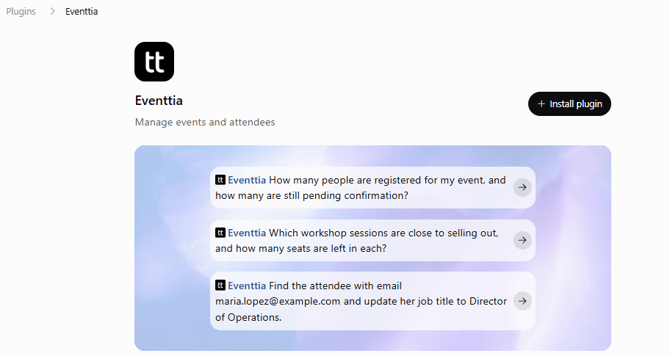
- Open the Eventtia app in ChatGPT.
- Click Install Plugin.
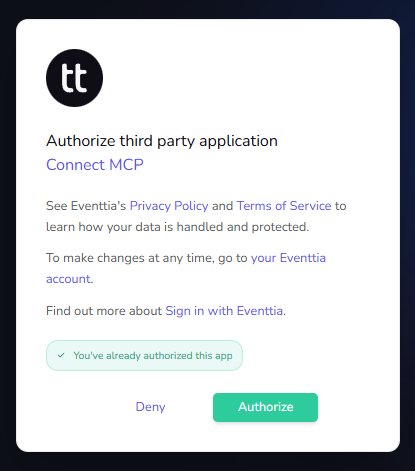
- Sign in with your Eventtia email and password when prompted.
- Review the permissions and click to authorize access.
- Start a new chat and select Eventtia from the tools menu (the + button), or mention it in your message.
Connect to Claude
- Sign in to Claude at claude.ai or in the desktop app.
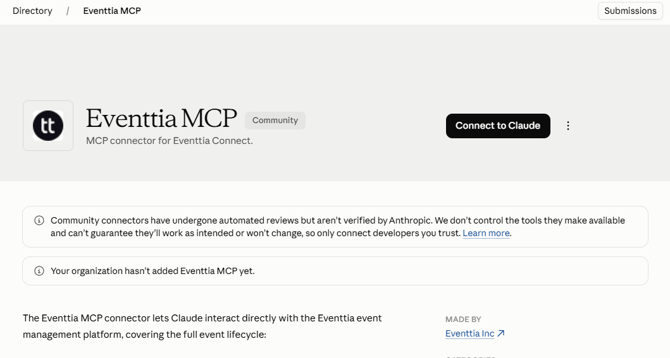
- Open the Eventtia connector for Claude, or go to Settings > Connectors and search for Eventtia.
- Click Connect to Claude.
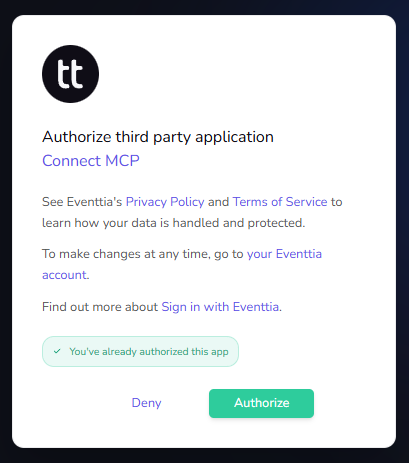
- Sign in with your Eventtia email and password when prompted.
- Review the permissions and click to authorize access.
- In a new chat, open the tools menu (the + button) and check that Eventtia is turned on.
Connect to Microsoft Copilot
Coming soon. We will update this article when it is available.
Check that it works: In a new conversation, ask: "List my Eventtia events." The assistant should show the events from your account.
What you can do once connected
Once connected, you can ask the assistant to:
- View your events, their details and summary metrics, and update basic information such as name and dates.
- Create and update attendee types and their custom registration fields.
- Find, register, confirm or reject attendees, and resend confirmation emails.
- Create activities and sessions, and enroll attendees in them.
- Create and update speakers and check-in points.
- View an attendee's payments and register manual deposits.
Some settings are managed directly in the Eventtia admin: images, address and map, confirmation messages and emails, etc.
Best practices
Follow these recommendations to get reliable results.
- Name the event in every request. If you manage several events, always mention the event name so the assistant works on the right one.
- Be specific. Include dates, times, time zones, capacities and attendee types in your request. The more details you give, the fewer assumptions the assistant makes.
- Share information in a structured way. For lists of speakers, activities or fields, paste a table or a list instead of describing them in a long paragraph.
- Test on a draft event first. Before making changes to a live event with registered attendees, try the task on a test or unpublished event.
- Confirm before bulk actions. For large changes, ask the assistant to show you the plan before it executes it.
- Ask for confirmation of what changed. At the end of a task, ask the assistant to summarize what it changed and what remains to be done in the admin.
- Review before going live. Check important changes in the Eventtia admin before opening registration or sending communications to attendees.
- Keep one topic per conversation. Start a new conversation for each event or large task to avoid mixing information.
- Share only the data you need. Avoid pasting personal attendee information into the conversation unless the task requires it.
Data and privacy
The assistant works with your own Eventtia account and permissions. The MCP server stores no copies of your data, every change is logged in Eventtia, and Eventtia does not use your data to train AI models. Your AI provider has its own data policy. Learn more in our Data Processing Agreement and on the Eventtia MCP Server page.
Troubleshooting and feedback
|
Situation |
What to do |
|---|---|
|
The assistant says a change was made, but you don't see it in the admin |
Wait a minute and refresh. If it still doesn't appear, make the change in the admin and let us know. |
|
A recent change doesn't appear in a list |
Ask the assistant for that specific item instead of the full list. |
|
The assistant can't complete a task |
The setting may be managed in the Eventtia admin. See "What you can do once connected". |
Have questions or feedback? Contact your Customer Success manager or help@eventtia.com