![Logo black transparent background.png]](https://help.eventtia.com/hs-fs/hubfs/Logo%20black%20transparent%20background.png?height=40&name=Logo%20black%20transparent%20background.png)
Step 1
-
Read this article to learn how to create a new user.
Step 2
-
Once you have created a user, you can focus on configuring their permissions.
-
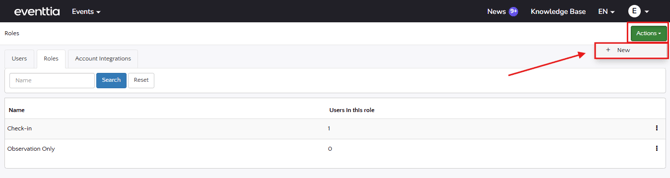
Click on the “Roles” tab and, from the “Actions” button, select “New” to create a new role type.
-
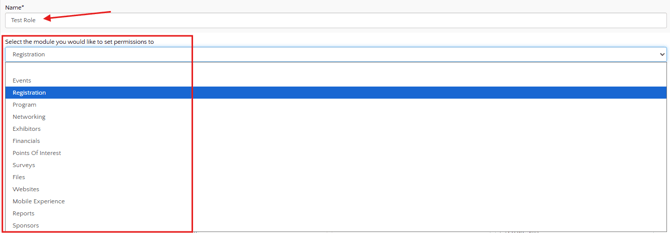
Assign a name related to the role’s responsibilities. For example, if the role will focus on the entire event registration process, you could name it “Registration Staff.”
-
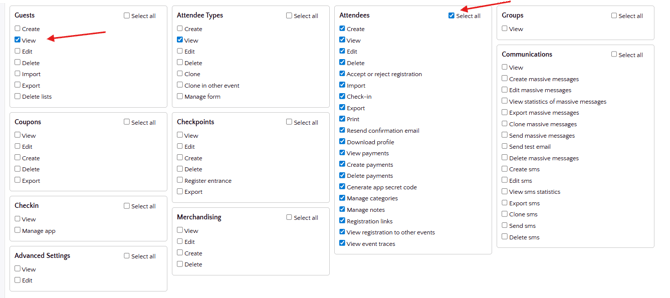
Then, configure the permissions for each module using the dropdown menu and selecting the options you want to enable.
-
Even if the role is designed specifically for registration, you can still configure permissions for other modules such as Program, Networking, and others if needed.
-
Once everything is set up, click “Save.”
Step 3
-
After your roles are created and properly configured, you can assign them to your users.
-
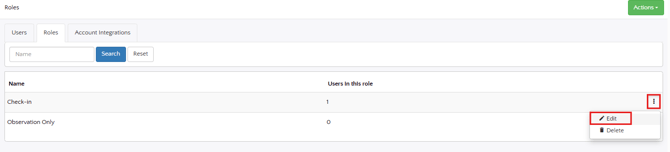
In the “Users” module, click the three vertical dots on the right side of the user’s card and select “Edit.”
-
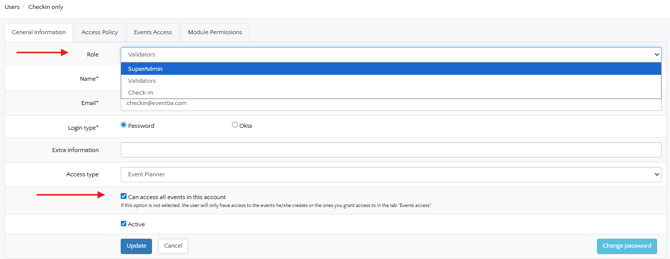
If the user you are editing will not be a Super Admin, you can assign one of the roles you previously created. On the same page, under the “Role” option, select the appropriate role and save the information to ensure it is properly assigned.
- Additionally, you can define whether this user will have access to all events within the account by enabling the option “Can access all events in this account.”
- If the user will not have access to all events within the account, refer to this article to learn how to apply event-level restrictions.
- Don’t forget to click “Save” each time you make a change.