![Logo black transparent background.png]](https://help.eventtia.com/hs-fs/hubfs/Logo%20black%20transparent%20background.png?height=40&name=Logo%20black%20transparent%20background.png)
1. First option: A new live Transmission video
Note: If you don't know how to create a live video read this Youtube Article
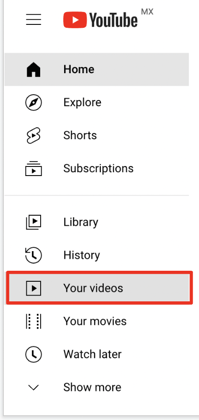
- You have to go on the “Your videos” section first :
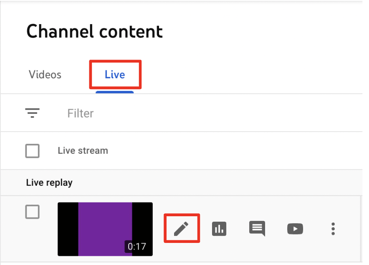
- Next, click on the “live” section and on the little pencil next to your live video:
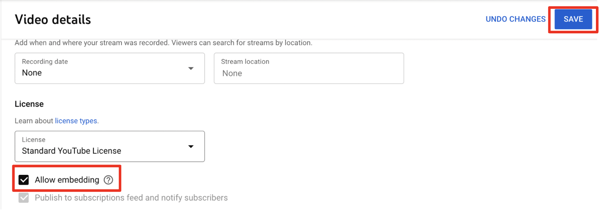
- Next, scroll down and click on “show more”:

- Scroll down and click on “allow embedding” and “save”:
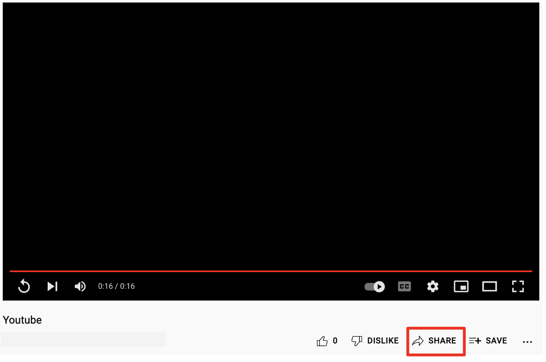
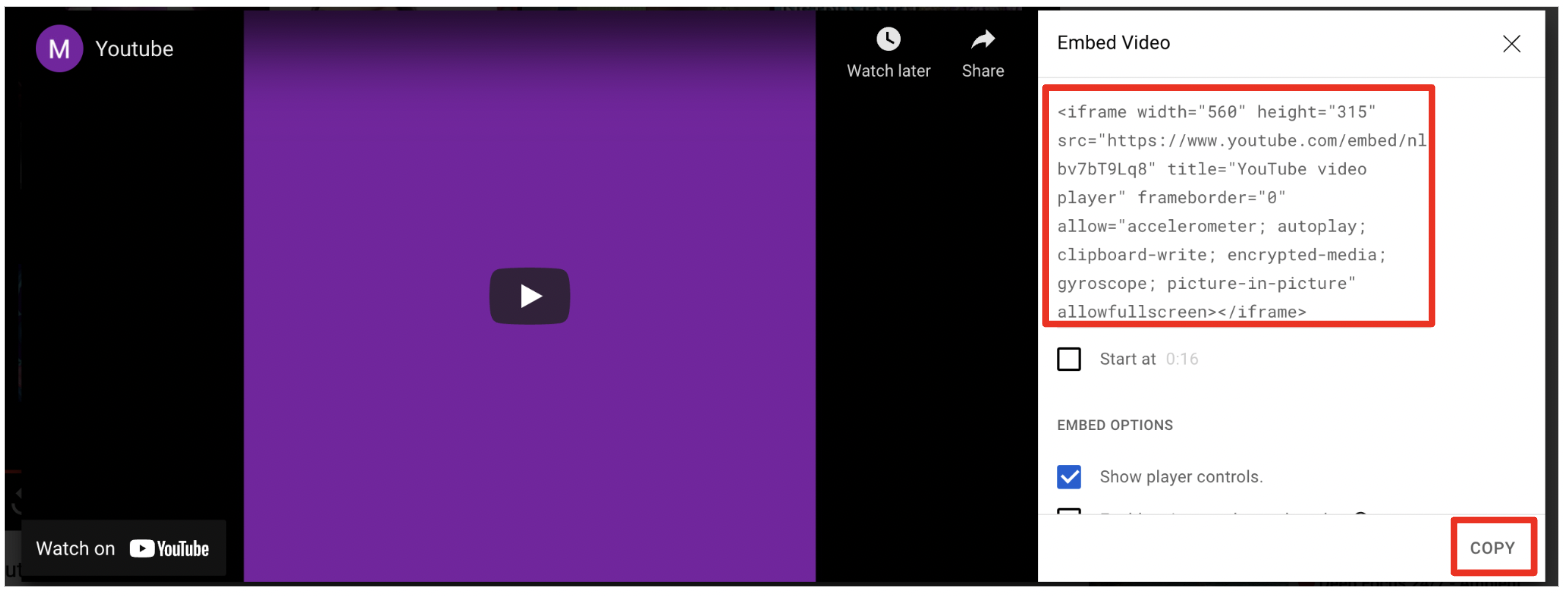
- Close the window and search your live video on YouTube, click on “share”, choose the "embed" option and copy the embedding link :
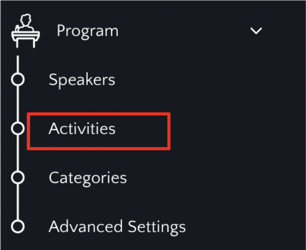
- Now go to your Program module and then "activities"
- Choose the activity you need and then go to the "virtual stage settings" section

- Select "youtube" and then paste the information on the "streaming embed code"
%208.56.08%20a.m..png?width=688&height=393&name=Captura%20de%20pantalla%202025-07-23%20a%20la(s)%208.56.08%20a.m..png)
Save it and you will be done.
2. Second option: A video that already is in Youtube
-
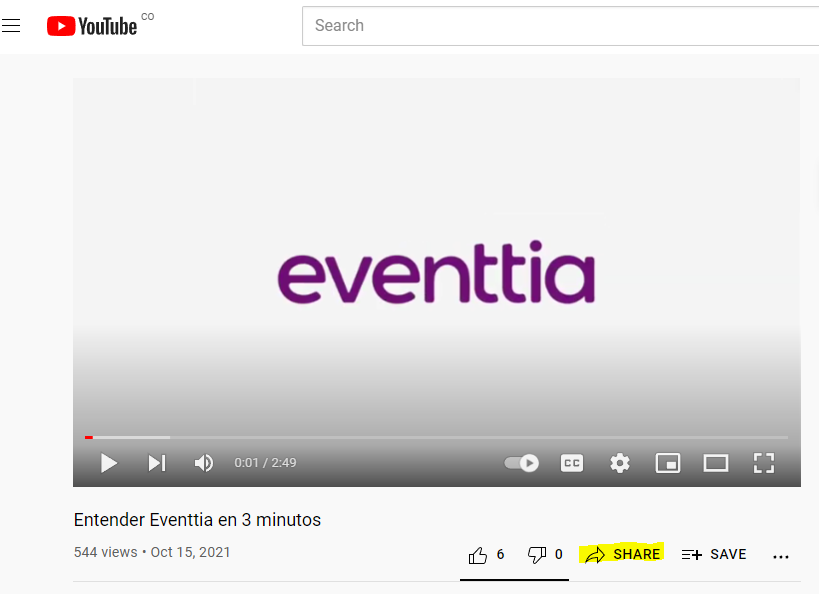
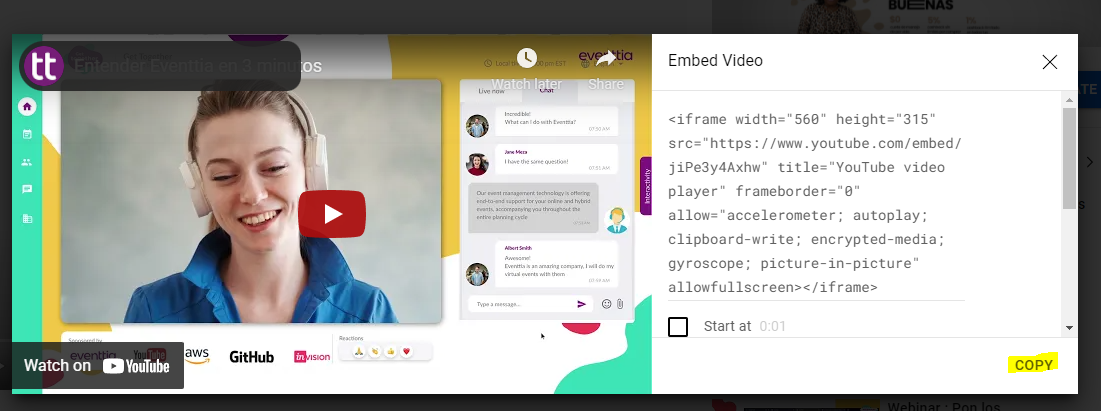
- Go to the YouTube Video that you want to embed, it could be a future transmission or a video that already exist
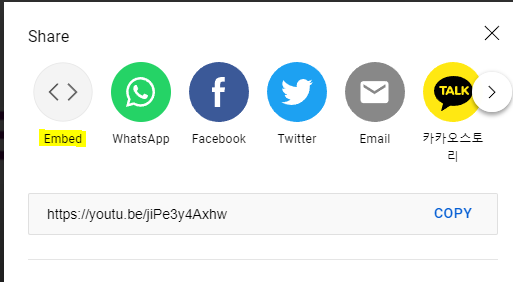
- Then in embed option, copy the link
- Now go to your Program module and then "activities"
- Choose the activity you need and then go to the "virtual stage settings" section
- Select the "youtube" option and paste the embed code
%209.01.17%20a.m..png?width=688&height=365&name=Captura%20de%20pantalla%202025-07-23%20a%20la(s)%209.01.17%20a.m..png)
- Save it and you will be done.
Now you know how to stream your activity on the Virtual Stage using Youtube